


Update (Feb 19th 2026): After further testing, I have found a much better way to handle cloud storage on Kubuntu. I've added pCloud to the "The Cloud Challenge" section below as my new top recommendation for native sync.
Introduction
I have been using Kubuntu 24.04 LTS since its release. The main reason I keep coming back is its rock-solid stability, clean desktop environment, and the huge range of software available.
“LTS” stands for Long Term Support. For beginners, this means you don’t have to worry about reinstalling your system every few months; Kubuntu 24.04 is supported with security and maintenance updates until at least April 2027.
One of the biggest benefits is that Kubuntu is based on Ubuntu. This means you have access to a massive global community. If you run into a problem, the Ubuntu help forums are right there, and the solutions usually work perfectly for Kubuntu too.
Kubuntu is a “sweet spot” distribution: it’s easy enough for beginners, but powerful enough for advanced users. Let’s dive into the details.
Quick Facts
📦 Based on: Ubuntu 24.04
🖥️ Desktop: KDE Plasma 5.27 (Stable LTS)
👥 Target: Beginners, Windows migrants, Advanced
💾 RAM: 4 GB minimum, 8 GB recommended
🗄️ Storage: 25 GB minimum, 50 GB recommended
First Impressions
The Kubuntu installation process is surprisingly straightforward. If you choose to install it alongside Windows, the installer handles almost everything for you. One thing you’ll notice immediately is the speed: while Windows can take an hour (or more!) of updates and “getting things ready,” Kubuntu is usually up and running in 10 to 15 minutes.
💡 Pro Tip: During installation, look for the screen that asks if you want to: “Install third-party software for graphics and Wi-Fi hardware and additional media formats.”
Always check this box. It ensures your MP3s, MP4s, and hardware drivers work the second you log in. If you forget, don’t worry—you can fix it later by typing this into your konsole:
sudo apt install kubuntu-restricted-extrasPerformance & Modern Hardware
KDE Plasma (the desktop environment) has evolved—it’s much lighter than it used to be. While the official minimum is 4 GB of RAM, modern web browsing is hungry. If you run Firefox or Chrome with several tabs open, 4 GB might start to feel a bit sluggish.
My advice for those on older gear: If you have an old laptop with 4 GB of RAM and an old-fashioned spinning Hard Drive (HDD), do yourself a favor: spend a few dollars on a cheap SSD upgrade. It’s the single best thing you can do to make Kubuntu feel like a brand-new, lightning-fast machine.
The Verdict on Feel
Stepping into the Kubuntu world felt instantly familiar to me. It’s intuitive and clean. Even though it’s packed with features and “widgets” that you might worry would slow things down, the reality is that everything runs smoothly and fast.
Desktop Environment
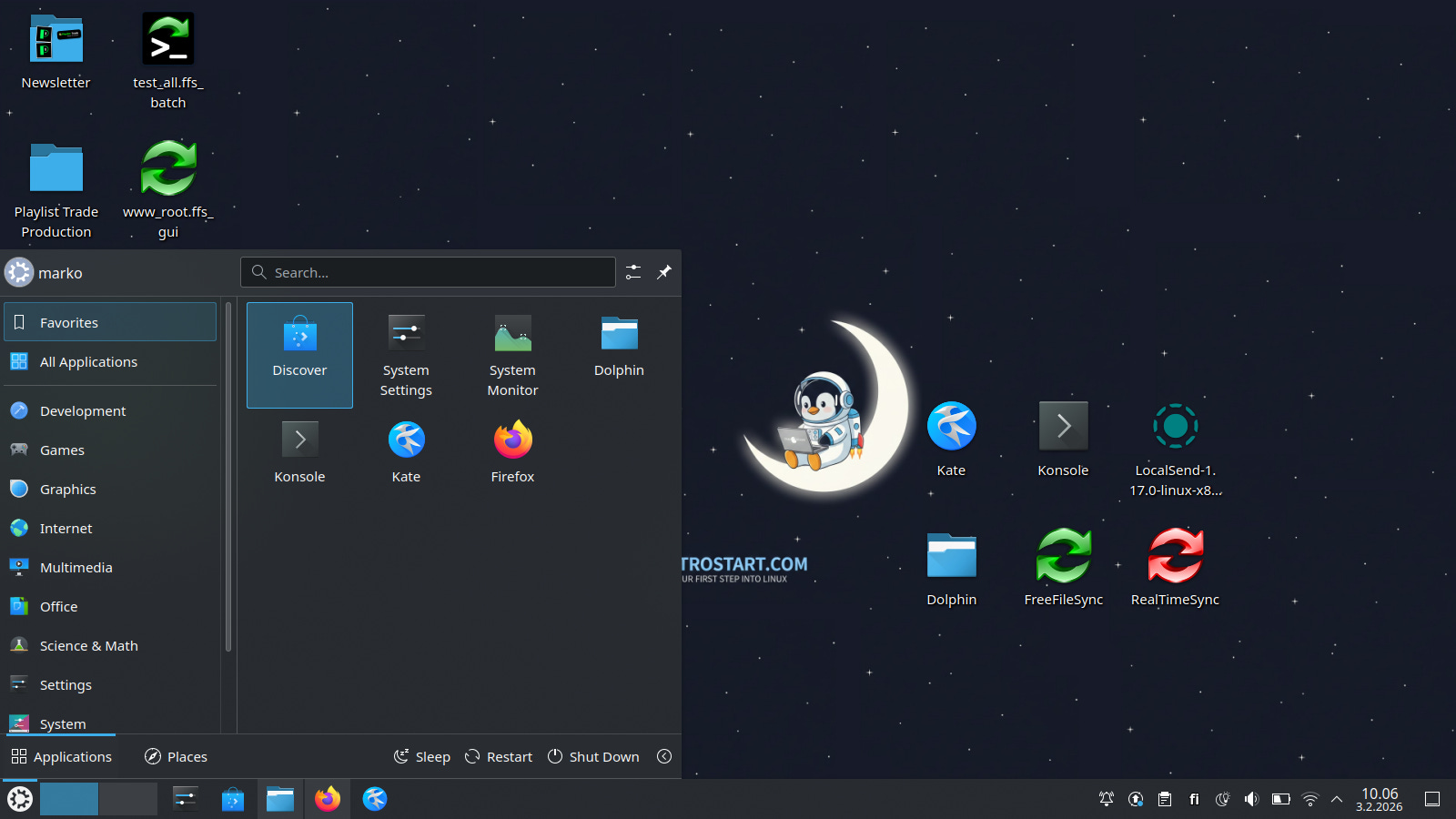
The Desktop: Why Windows Users Will Feel at Home
The biggest strength of Kubuntu is KDE Plasma. If you’re moving from Windows 10 or 11, the layout will feel like second nature. You have a “Start Menu” in the bottom left, a taskbar (the “Panel”) at the bottom, and your system tray (clock, Wi-Fi, battery) in the bottom right.
Customization Without the Headache
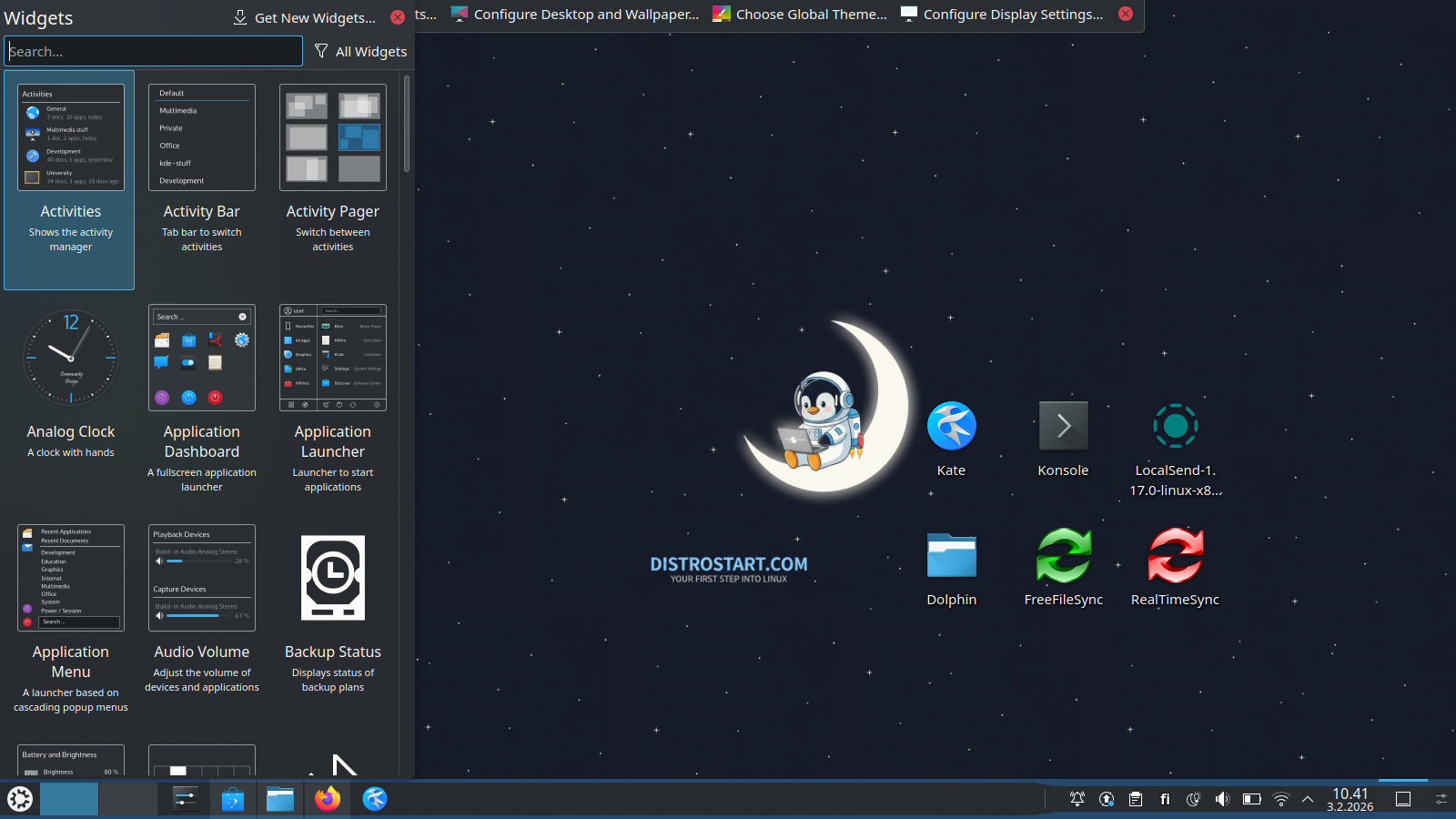
Unlike Windows, where Microsoft tells you how your desktop should look, Kubuntu lets you decide.
Widgets: You can add a weather forecast, a sticky note, or a CPU monitor directly onto your desktop.
The “Global Theme” Store: If you don’t like the default look, you can go to Settings and download a completely new look with one click. Want it to look like a Mac? You can. Want it to look like Windows 7? You can do that too.
Is it “Heavy”?
A common myth is that all these fancy effects make the computer slow. In my experience with 24.04, it’s actually the opposite. The desktop feels snappy and responsive. While some “heavy” widgets (like those with lots of animations) can use a bit more RAM, the core system is surprisingly light.
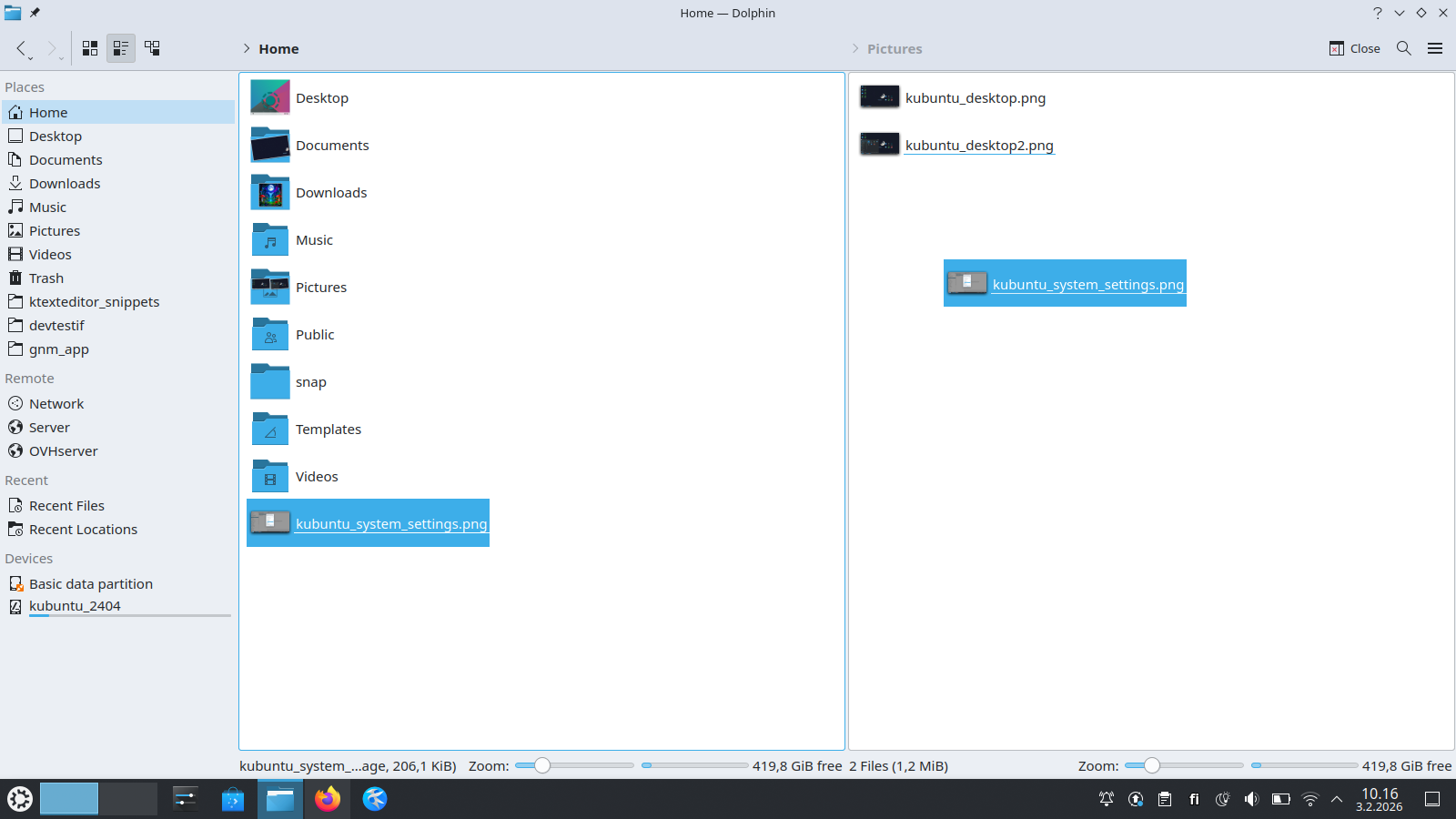
Managing Software: Discover vs. Konsole
In Kubuntu, you don’t have to hunt down .exe files on random websites. Everything you need is in Discover, the built-in software center.
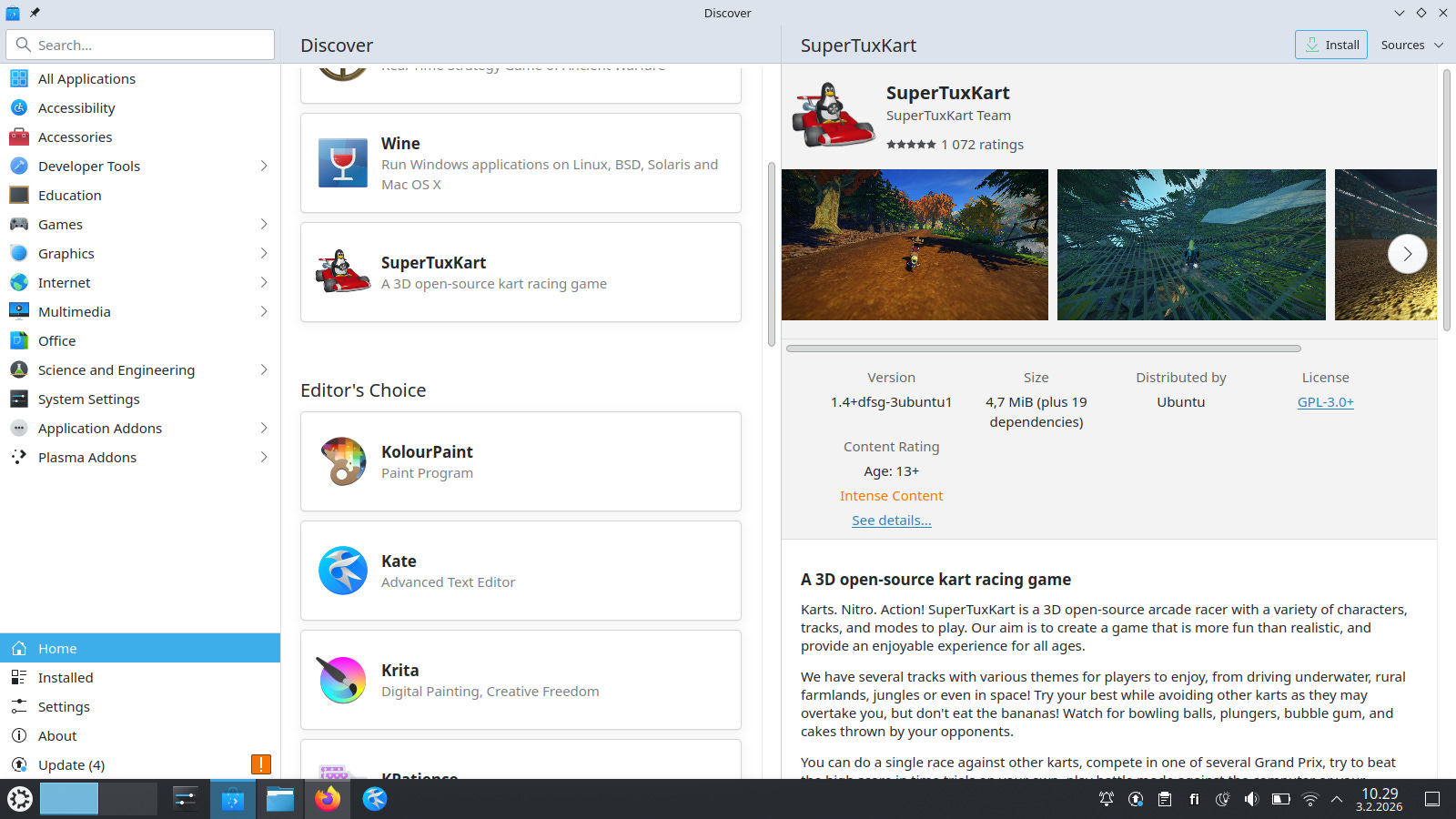
How to Update with Discover (The Easy Way)
Updating your system is as simple as checking your phone for app updates:
Look for the Icon: When updates are ready, a small blue icon (an arrow pointing up) will appear in your system tray (bottom right).
Open Discover: Click that icon, or search for “Discover” in your application menu.
Click “Update All”: On the “Updates” tab, you’ll see a list of everything from security patches to new versions of your favorite apps. Just hit the “Update All” button.
Password, Please: Enter your password when prompted, and let Kubuntu do the rest.
❗A Small Note on Patience: When you click “Update All” in Discover, you might notice it “thinks” for 10–20 seconds before asking for your password. Don’t worry—it hasn’t frozen!
Because Kubuntu is so versatile, Discover is busy checking for updates from multiple places (Ubuntu’s main servers, Flatpaks, and Snaps) all at the same time. Once it has gathered the full list, it will ask for your password and start the download. It’s a tiny delay, but worth knowing so you don’t think something is wrong!
Watch how fast Kubuntu updated, less minute, not hours. And you can decide when to update! 🚀⚡
⚡ The “Pro” Alternative: Konsole
If you ever see a Linux veteran typing fast into a black window, they are probably using Konsole. While Discover is great for browsing and visual updates, the terminal is even faster.
For the curious, you can update your entire system with just one command:
sudo apt update && sudo apt upgrade -yIs it necessary for beginners? No. But it’s there if you ever want to feel like you’re in The Matrix.
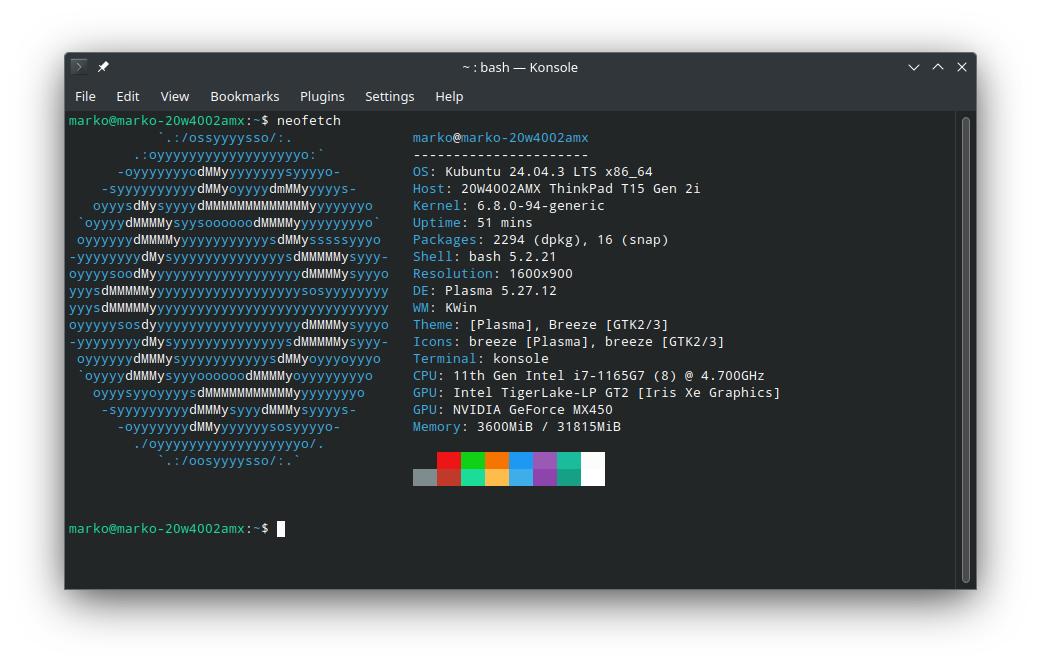
The Pros & Cons
Pros (The Good)
✅ Familiarity: If you can use Windows, you can use Kubuntu. The Start Menu and Taskbar are right where you expect them.
✅ Rock-Solid Foundation: Because it’s an LTS (Long Term Support) release based on Ubuntu, you get 5 years of security updates.
✅ The "Swiss Army Knife" of Desktops: You can customize everything. Want your clock in the middle? Done. Want a weather widget on your desktop? Easy.
✅ Software Galore: Between the Ubuntu repositories and the "Discover" store, you’ll rarely find a piece of software you can’t install.
✅ Extremely Stable: Once it’s set up, it just keeps running. It’s built for the long haul.
✅ "Out of the Box" Ready: If you check that "third-party software" box during install, your drivers and media codecs are ready on day one.
✅ Professional Look: It doesn't look like a "toy"; it looks like a powerful workstation.
Cons (The Bad)
❌ The "Discover" Delay: As mentioned, the software center can be a bit slow to "think" before it starts updates. It’s not broken; it’s just thorough.
❌ Choice Overload: There are so many settings that a beginner can sometimes feel overwhelmed. (Pro tip: Just use the search bar in the Settings app!)
❌ Plasma 5 vs 6: While Plasma 6 is the "newest" thing in Linux right now, Kubuntu 24.04 uses the older Plasma 5.27. This sounds like a "con," but it’s actually a "pro" for stability—5.27 is the most polished version ever made.
❌ No Native Cloud Sync: You have to use 3rd-party tools like Insync or FreeFileSync to get Google Drive working properly.
☁️ The Cloud Challenge: Google Drive & OneDrive
If you rely heavily on Google Drive or OneDrive, here is the honest truth: There is no official “Sync App” for Linux.
While Ubuntu (GNOME) has a built-in way to see your Google files, Kubuntu’s built-in “Online Accounts” can be a bit temperamental. Often, you can see your files, but they don’t “sync” to your computer for offline use like they do on Windows.
How to fix it (The DistroStart Way):
Don’t worry—you aren’t stuck! There are two great ways to solve this:
FreeFileSync (The Free Choice): This is a powerful, open-source tool. It doesn’t “auto-sync” in the background constantly, but you can open it, click “Compare,” and it will perfectly sync your local folders with Google Drive.
Insync (The “Pro” Choice): If you want it to work exactly like Windows (automatic background syncing with a little icon in the tray), Insync is the gold standard. It’s a paid app, but for many “Windows migrants,” it’s the best $30 they ever spent to make Linux feel like home.
💡 Pro Tip: If you want a native experience, pCloud is currently the best bridge for Kubuntu. You can read my full pCloud Linux review here for the setup guide and performance stats.
🏆 Final Verdict: Is it DistroStart Approved?
Kubuntu 24.04 LTS is a powerhouse for anyone who wants a “pro” computer without the “pro” price tag or privacy concerns. It’s stable, it’s beautiful, and it’s familiar.
Despite the small delay in Discover or the need for a 3rd-party cloud app, the freedom and speed you get in return are more than worth it. If you are looking for your first Linux home, you can stop searching. Kubuntu is the one.
🏁 DistroStart Score
Ease of Use: ⭐⭐⭐⭐☆
Stability: ⭐⭐⭐⭐⭐
Customization: ⭐⭐⭐⭐⭐
Cloud Support: ⭐⭐☆☆☆
Overall Score: ⭐⭐⭐⭐☆ (4/5 Stars)
🚀 Get Started with Kubuntu
If you’re ready to make the switch and start your own Linux journey, here are the official links you’ll need:
1. Download Kubuntu 24.04 LTS
This is the core operating system. Download the ISO file and use a tool like “Etcher” or “Rufus” to put it on a USB drive.
2. Solve the Cloud Syncing Gap
Don’t forget to grab one of these tools if you need to keep your Google Drive or OneDrive files synced:
FreeFileSync (Manual & Free): Great for manual backups and syncing folders.
Insync (Automatic & Pro): The best “set it and forget it” solution for Linux.
pCloud (Pro Native cloud sync): Native cloud sync experience with privacy.
💡Remember, when you install Kubuntu, always check the box for ‘Third-party software.’ It saves you so much time later!
Thanks for checking out DistroStart! I’d love to know: what’s the biggest thing stopping you from trying Linux, or if you’ve already made the jump, what was your very first distro? Let's chat in the comments! 👇