


Introduction
That’s the first question most people ask after switching to Linux. You’re used to seeing Google Drive or OneDrive right there in your file manager, syncing quietly in the background. But on Linux, the “Big Two” often leave you stranded in the web browser.
If you're tired of manual uploads and are looking for a native experience, I found a potential alternative. Let's look at pCloud. It’s one of the few services that takes Linux seriously, but as I discovered, it isn't perfect.
What is pCloud?
“It’s not just another cloud storage service. It’s the one that actually listens to Linux users.”
💡 The Short Answer
pCloud is a cloud storage and file-syncing service that offers 10GB of free space — and an official desktop app for Linux.
Unlike Google Drive or OneDrive (which mostly ignore Linux), pCloud was built with cross-platform compatibility in mind from day one. That means:
You can install it on Ubuntu, Fedora, Debian, Arch, and more
It syncs files automatically across all your devices
You get a clean GUI, web interface, mobile apps — everything works together
Think of pCloud as Google Drive… but designed for everyone — including Linux users.
The Basics
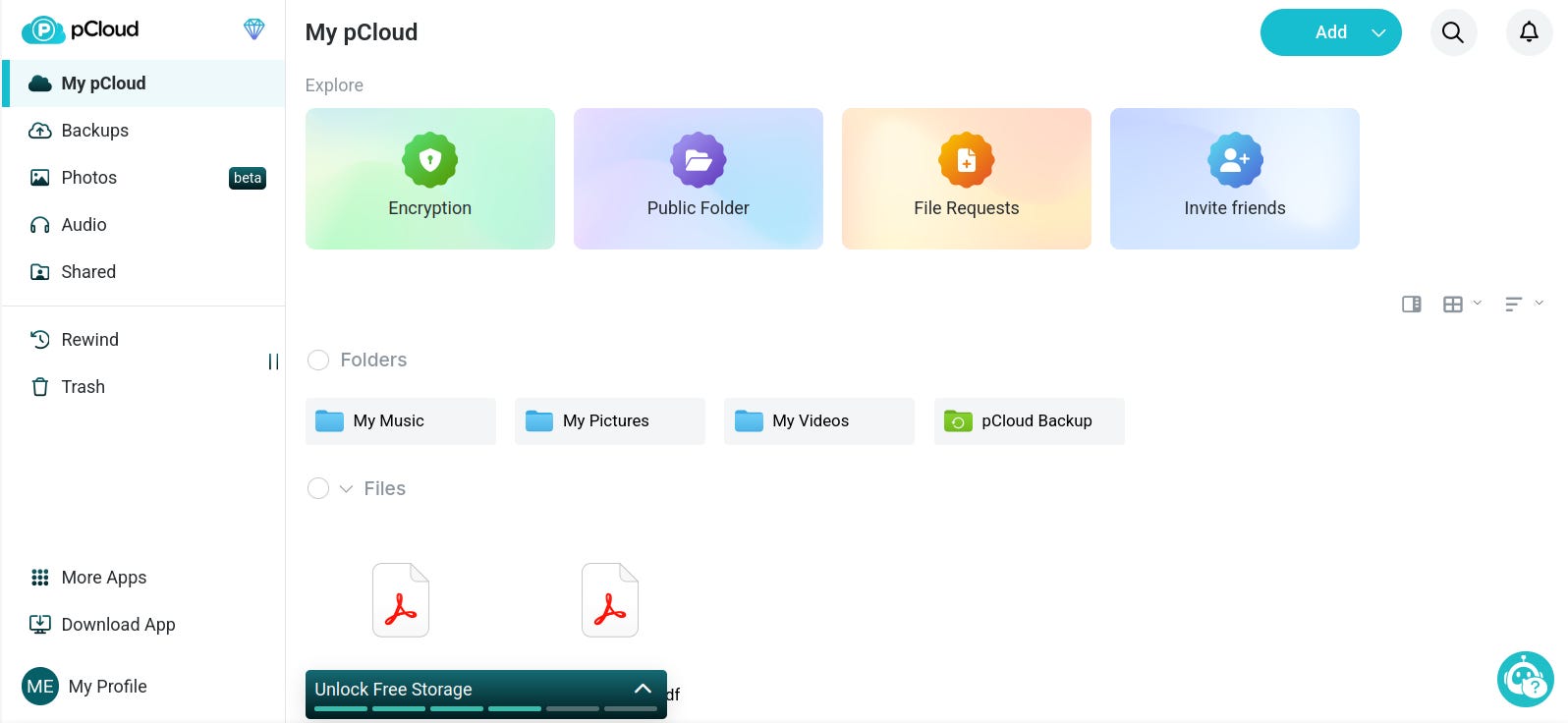
At its core, pCloud provides secure cloud storage where you can upload, store, and share files from anywhere. You get a dedicated folder on your computer that automatically syncs with your cloud account. Files are encrypted during transfer and storage, and you can access everything through web interface, mobile or desktop application.
Why pCloud for Linux Users?
The key differentiator is straightforward: Google Drive and OneDrive lack proper Linux desktop sync clients. Many Linux users resort to workarounds like GNOME Online Accounts or third-party solutions that are clunky and unreliable. pCloud eliminates this problem with a dedicated Linux application that works seamlessly across distributions.
How It Works
When you install pCloud on your Linux system, it creates a synchronized folder (typically ~/pCloud Drive or similar). Any files you place in this folder automatically upload to your cloud account. Conversely, files added to your pCloud account from other devices appear in this folder. It’s the frictionless sync experience Linux users have been missing.
Storage & Pricing
pCloud offers:
Free tier: 10GB of storage (good for testing)
Premium plans: 500GB or 10TB options
Lifetime plans: One-time purchase for permanent access (often discounted)
This flexibility makes it accessible whether you’re a casual user or someone needing serious storage.
💡 Pro Tip: At the time of writing, the lifetime offer is 500 GB for €199. The monthly price for e.g. 20 years is €0.83.
Security & Privacy
Your files are encrypted during transmission (TLS/SSL) and can optionally be encrypted at rest with pCloud’s encryption tools. You have control over sharing permissions, and the service has a strong privacy policy—important if you’re concerned about data handling on Linux where open-source alternatives are sometimes expected.
🎯 Who Is pCloud For?
This isn’t just for techies. It’s perfect for:
🔹 New Linux users who want easy cloud access without learning terminal commands
🔹 Students & professionals syncing documents, code, or presentations across devices
🔹 Creative folks storing photos, videos, and design files safely
🔹 Privacy-focused users who hate data mining and ads
🔹 Anyone tired of juggling third-party tools that never quite work
💬 In short: If you need cloud sync + Linux support = pCloud is your best bet.
🛠️ Install pCloud on Linux
pCloud uses the AppImage format. Think of this like a “portable” Windows app—you don’t strictly install it; you just run it. However, it needs a little help to get started.
Step 1: The “Secret” Ingredient (Ubuntu 24.04 & 22.04)
Modern Ubuntu versions (and many of its cousins) are missing a small file that AppImages need to run. If you double-click the app and nothing happens, this is why.
Open your Terminal and paste this command:
sudo apt install libfuse2t64 (If you are on an older version like Ubuntu 22.04, use this instead)
sudo apt install libfuse2Step 2: Download & Move
Go to the pCloud Download page and grab the Linux 64-bit version.
Space Tux Pro Tip: Move the file from your “Downloads” folder to a safe place like a new folder in your Home directory called “Apps.” If you move the file later, your shortcuts might break!
Step 3: Make it “Executable”
By default, Linux treats downloaded files as “read-only” for safety. We need to tell the system it’s okay to run this as a program:
Right-click the pCloud AppImage file.
Select Properties.
Go to the Permissions tab.
Check the box that says “Allow executing file as program.”
Step 4: Launch and Log In
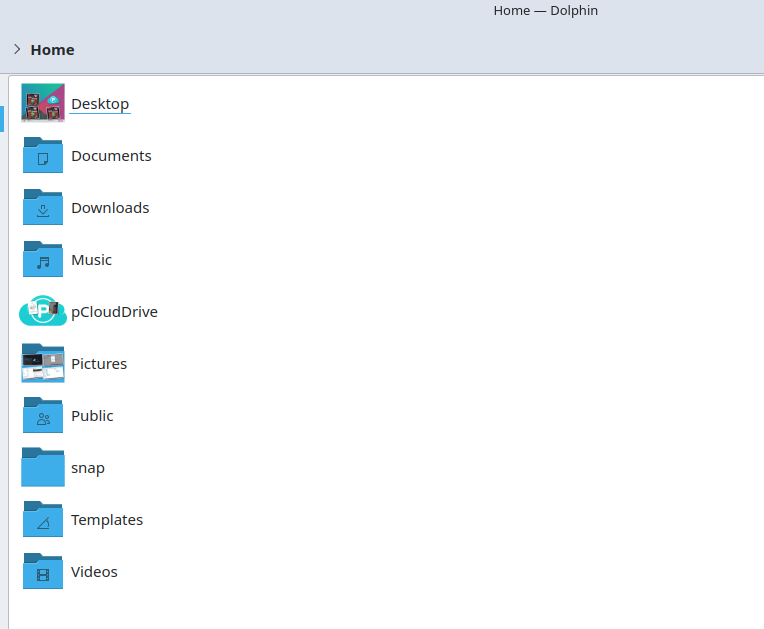
Now, just double-click the file. The pCloud login window will pop up. Once you sign in, look at your file manager—you’ll see a brand new “pCloudDrive” ready to go!
“If you want pCloud to show up in your app menu like a normal program, I highly recommend a tool called AppImageLauncher. It keeps your apps organized and handles the ‘Allow executing’ part for you automatically!”
🔍 pCloud key features
Let’s break down what pCloud does better than alternatives — especially for Linux users:
✅ 1. Native Linux Desktop App
No web-only fallbacks. Full GUI sync, folder monitoring, real-time updates.
✅ 2. Free Tier with 10GB Space
Enough for documents, photos, and small projects. Paid tiers start at $4.99/month for 500GB.
✅ 3. File Sharing & Collaboration
Create shareable links, set expiration dates, password protect files — great for teams or personal use.
✅ 4. Built-in Media Player & Viewer
View PDFs, images, videos directly in the app — no need to open external apps.
✅ 5. Auto-Sync Folders
Set up folders to auto-sync across devices — perfect for keeping notes, code, or media consistent.
✅ 6. WebDAV Support
For advanced users — mount pCloud as a network drive on Linux (via rclone or davfs2).
✅ 7. Privacy-Focused
No ads, no data mining, no mandatory Google login. You own your files.
⚡ Bonus: pCloud supports multi-account switching — useful if you manage personal + work spaces.
⚡Performance on Linux
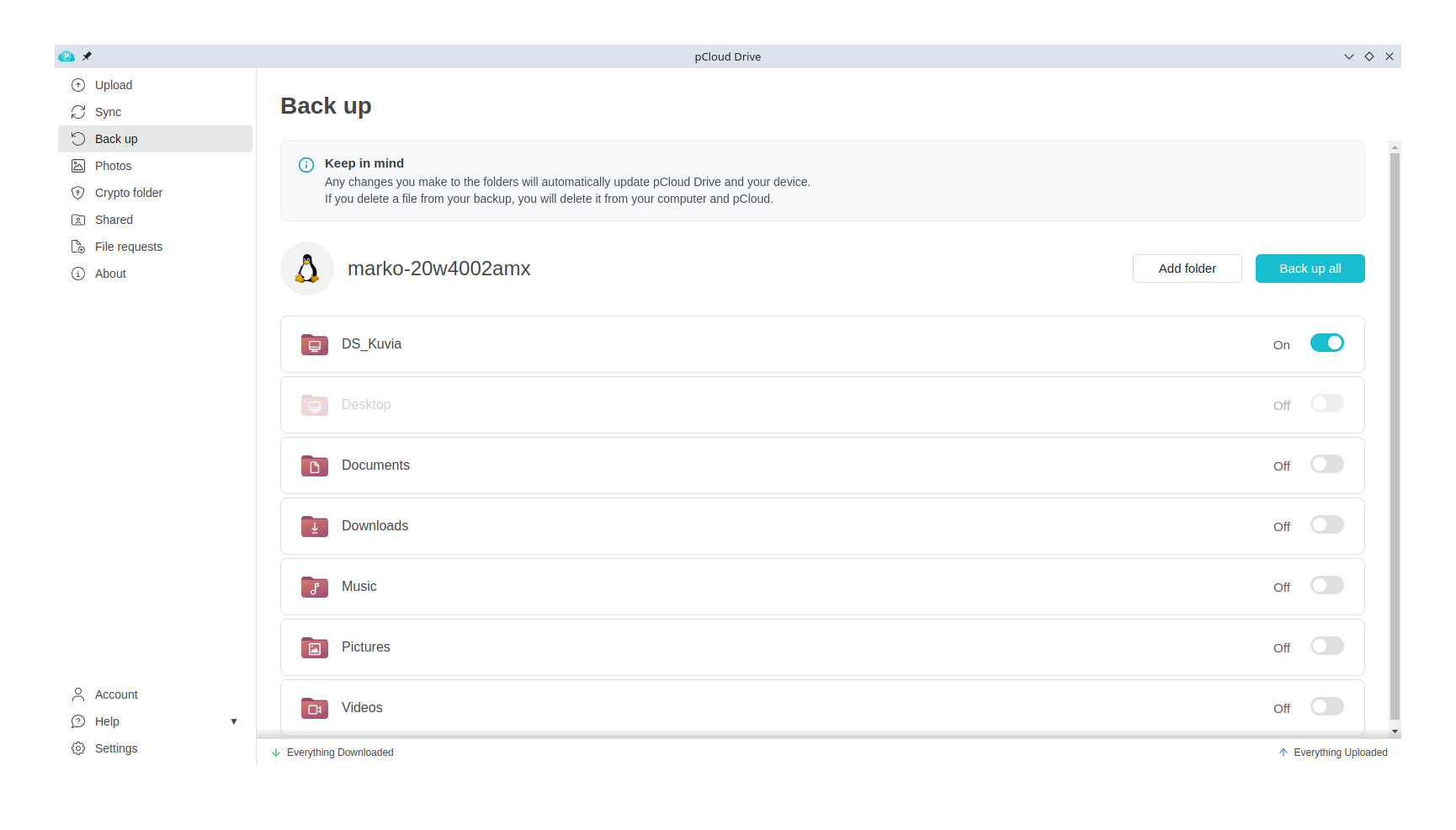
How fast is it? Is it laggy? Does it eat RAM?
✔️ Speed:
Fast upload/download speeds (especially with paid plans)
No throttling unless you’re on the free tier
Works well over Wi-Fi and Ethernet
✔️ Resource Usage:
Lightweight desktop app (~100MB RAM max)
Minimal CPU usage during sync
Doesn’t crash or freeze like some third-party tools
✔️ Stability:
Very stable — no crashes reported in recent months
Updates are smooth and infrequent
Good error handling when connectivity drops
⏱ Performance: Put to the Test
I put pCloud through its paces on a 25 Mbit/s connection to see how it handles different file types. Here is the breakdown:
Small Files (Photos): A 11MB folder of images backed up almost instantly. The “auto-backup” feature for folders works flawlessly.
Medium Files (MP3s): Uploading 110MB of music (11 files) was “lightning fast” once I removed bandwidth limits in the settings.
Bulk Upload (WAVs): A heavy 660MB folder (15 high-quality audio files) took about 9 minutes.
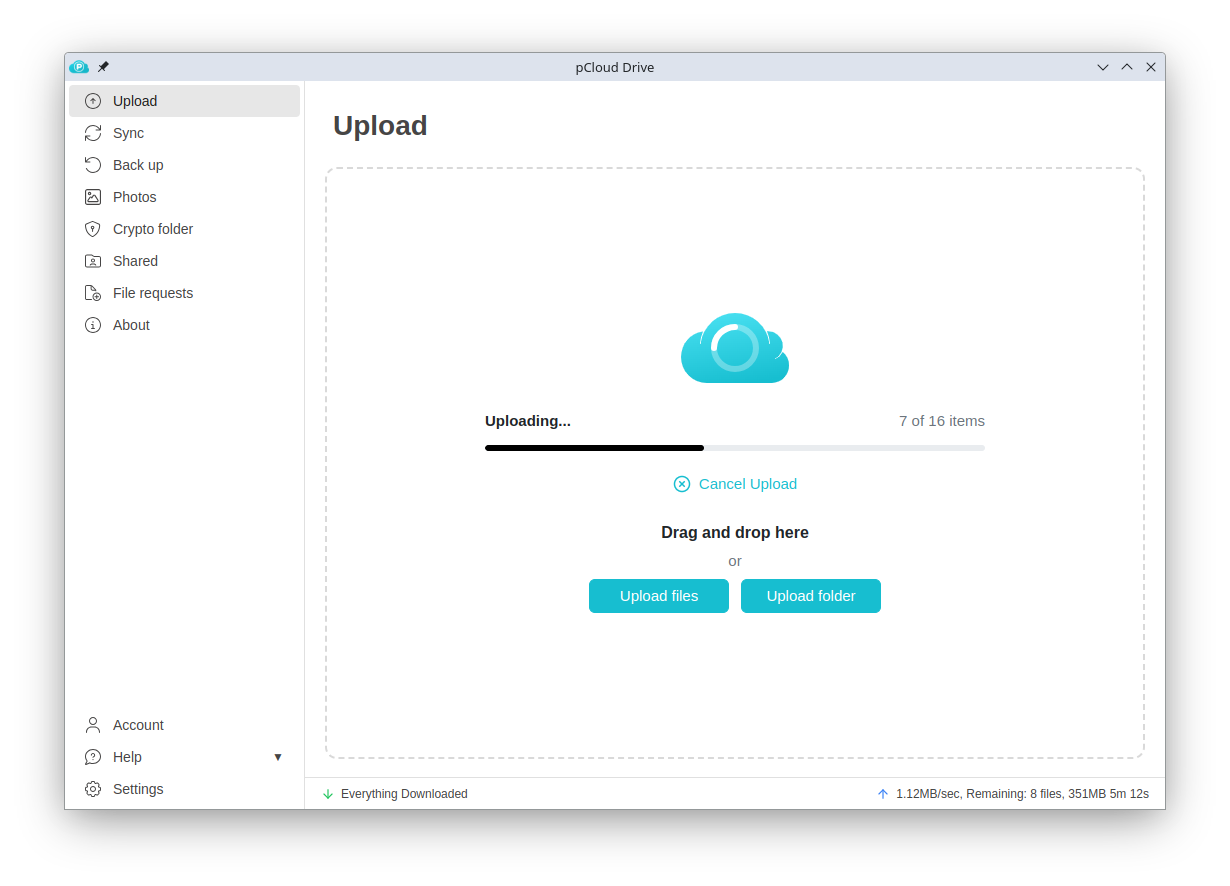
⚠️ The “Missing File” Quirk: During the heavy WAV upload, 2 files originally failed to sync. I had to manually check and re-add them. Always keep an eye on the “Sync Queue” when moving large amounts of data at once!
One feature I absolutely love is the built-in media player; I can stream my music library directly from the cloud flawlessly to my bluetooth speaker 🔊🐧
⚖️ pCloud vs. Google Drive & OneDrive: The Linux Reality Check
Google Drive: 15GB Free / No Official Linux App / Browser-only.
OneDrive: 5GB Free / No Official Linux App / Deep Windows integration only.
pCloud: 10GB Free (Expandable) / Native Linux App / One-time payment option.
The “Office” Gap: Storage vs. Workspace
The biggest difference between pCloud and the “Big Two” (Google Drive and OneDrive) is that pCloud is a Cloud Drive, while the others are Cloud Workspaces.
Google/Microsoft: You can open a spreadsheet in your browser, type at the same time as a friend, and everything saves automatically. It’s a “Live” experience.
pCloud: It is essentially a “Hard Drive in the Sky.” To edit a document, you usually have to open it with a program on your computer (like LibreOffice), save it, and let pCloud sync the changes.
⚠️ Update for 2026: While pCloud has recently introduced some basic web-based document viewing and light editing, it still lacks the heavy-duty real-time collaboration (like “Google Docs”) that teams or students might need.
The Pros & Cons
✅ Pros:
✅ Official Linux desktop app (rare!)
✅ Free tier available (10GB)
✅ Easy setup & intuitive UI
✅ Great privacy & no tracking
✅ Supports WebDAV & CLI tools
✅ Cross-device sync (Windows, Mac, Android, iOS, Linux)
✅ Media player
❌ Cons:
❌ Free tier has limited space (10GB) — good for light users only
❌ No built-in collaboration features like Google Docs (you can share links, but not edit together)
❌ Paid plans are slightly pricier than Dropbox or iCloud (but offer more value)
❌ No “offline access” without paying (unlike Google Drive Pro)
❌ Monthly traffic limits on shared download links matching your storage capacity (e.g., a 500 GB plan allows 500 GB of link traffic)
💡 If you just need file syncing, sharing, and basic cloud backup, pCloud is one of the best options — especially for Linux.
🏆Final Verdict: Should You Switch?
After testing pCloud on Linux, it’s clear that while it isn’t a “perfect” 1:1 replacement for the Google or Microsoft ecosystem, it is currently the most reliable bridge we have for the Linux desktop.
The Reality Check
pCloud is Cloud Storage, not a Cloud Office.
If you need to edit spreadsheets with three people at the same time in a browser, stick with Google Drive.
If you want your files to feel like they are actually on your computer, and you want to stop paying monthly “digital rent,” pCloud wins.
Who is this for?
✅ The “Ex-Windows” User: You just want a folder that syncs without using a web browser.
✅ The Privacy Conscious: You want Swiss data laws and optional encryption.
✅ The Budget Hunter: You want to pay once and never see a subscription bill again.
Who should skip it?
❌ The Heavy Collaborator: You rely on real-time “Google Docs” style editing.
❌ The “Set and Forget” Purist: If you aren’t comfortable checking a “Sync Queue” to make sure all 660MB of your data made it across, the occasional missing file might frustrate you.
🏁 DistroStart Score
Ease of Use: ⭐⭐⭐⭐⭐
Performance: ⭐⭐⭐⭐☆
Linux Integration: ⭐⭐⭐⭐⭐
Reliability: ⭐⭐⭐☆☆
Value: ⭐⭐⭐⭐⭐
Overall Score: ⭐⭐⭐⭐☆ (4/5 Stars)
Space Tux says: “Mission accomplished! My files are safe on Earth (mostly!), and I didn’t have to open Chrome once to find them. See you in the next review!” 🐧🚀