

The Introduction
When I moved from Windows to Linux, one of the biggest questions was: How do I handle my email? On Windows, I was used to keeping five different browser tabs open for my personal Gmail, my work Outlook, and my old Yahoo account. It was a mess, and it was slow.
I wanted something that felt like a “real” desktop app but was easy enough for a beginner to set up. That’s when I rediscovered Thunderbird.
What is Thunderbird?
Thunderbird is made by the same people behind the Firefox browser. It’s free, open-source, and has recently been redesigned with a fresh look called “Supernova.” It’s basically a command center for your digital life.
Why it’s perfect for Linux Beginners
Zero-Config Setup: I didn’t have to look up server ports or IP addresses. I typed in my Gmail and Outlook addresses, clicked “Log in” on the Google/Microsoft pop-up, and I was done.
Unified Inbox: This is the killer feature. It combines the “Inbox” from all my accounts into one view. No more clicking back and forth!
The “Supernova” Design: If you haven’t seen Thunderbird lately, it’s much cleaner now. I switched to the “Card View,” which makes it look modern and sleek on my Linux desktop.
Setup was smooth
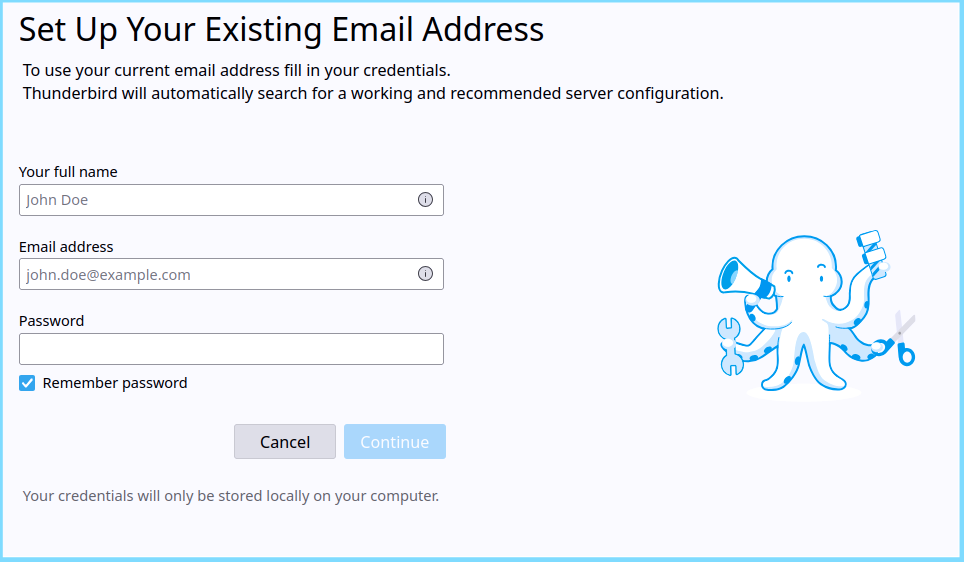
Auto-detected my IMAP/SMTP accounts (Proton, Fastmail, self-hosted)
Offered to import from Outlook/Gmail
Default theme is crisp, dark-mode ready, and respects system settings
No forced accounts. No “sync with Firefox” nag. Just… email.
💡 Pro tip: Install the Enigmail or OpenPGP add-on for end-to-end encryption — it’s built-in now (v115+), no extra plugin needed
Key features
🥜 Features in a nutshell
Thunderbird isn’t just an email client — it’s a privacy-first communication suite:
✉️ Email: Multi-account support (Gmail, Outlook, Proton)
📅 Calendar: Syncs with your mobile via CalDAV
📋 Tasks: A handy, local-first to-do list
💬 Chat: A hidden gem! Supports Matrix and XMPP for encrypted chatting
In a world where Slack, Teams, and Gmail lock you in — Thunderbird lets you own the stack.
🔹 Multi-Account Email (IMAP/POP3/Exchange)
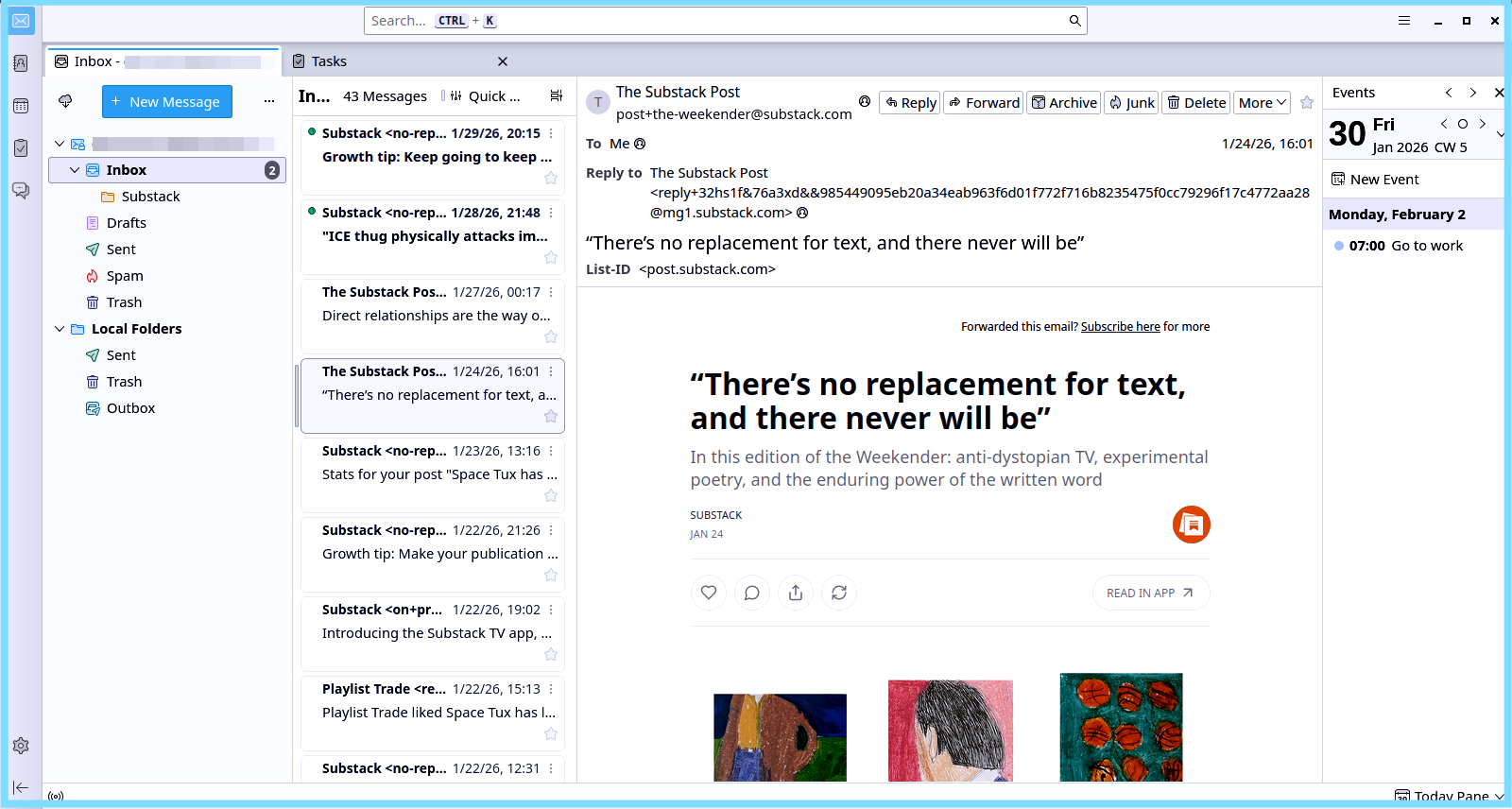
→ Adds accounts in seconds; unified inbox, folder sync, and per-account identities work flawlessly.
💡 Ideal for personal + work + hobby mail — all in one place, no cloud dependency.
🔹 Built-in OpenPGP Encryption
→ Enable in Account Settings > End-to-End Encryption. Generate keys, sign/encrypt emails with one click.
💡 No third-party plugins needed (since v115). You own your keys — truly private.
🔹 Calendar
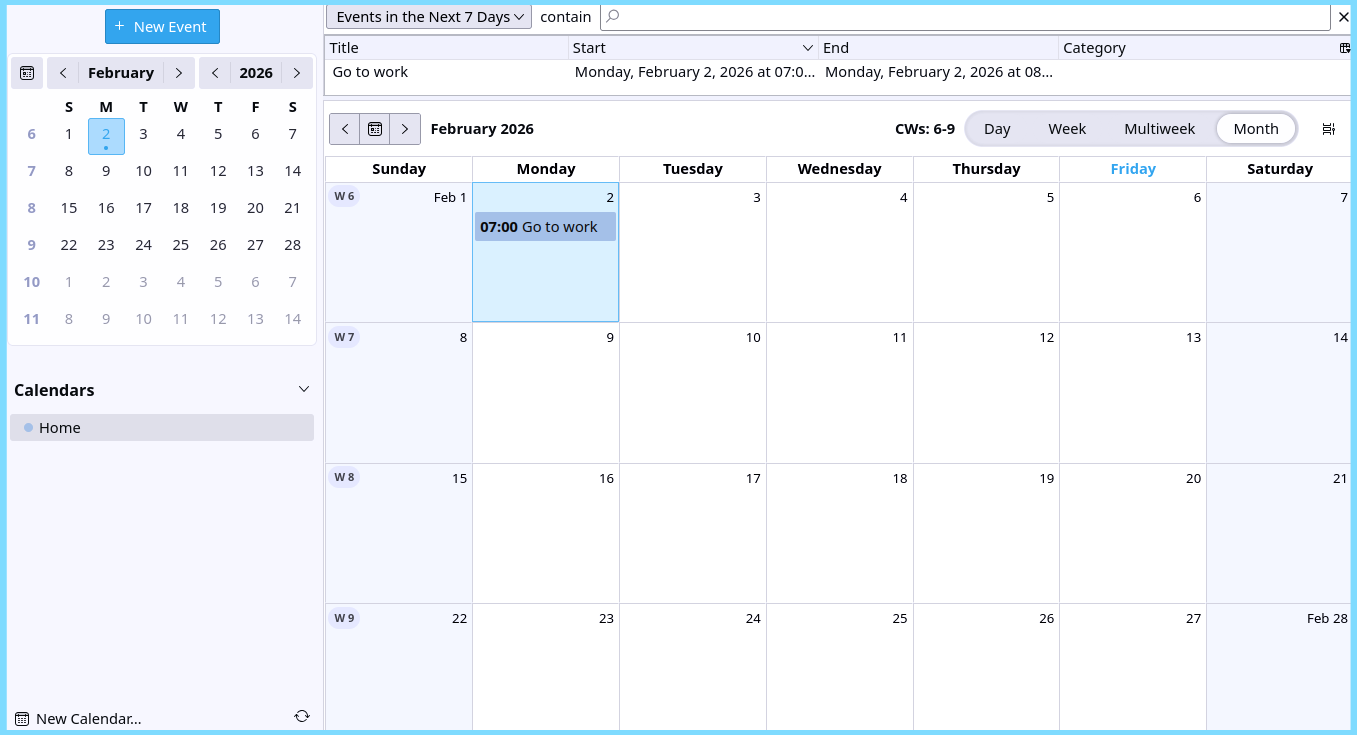
→ Lightning is now bundled by default (v115+), but it’s not seamless.
→ Supports CalDAV (Proton, Fastmail, Nextcloud, SOGo) — syncs events reliably.
→ ❗ UI feels dated: no drag-and-drop, limited recurrence options, no natural language input.
💡 Use case: Good enough for basic scheduling, but power users may prefer GNOME Calendar + Evolution sync.
📌 Pro tip: Export/import
.icsfiles easily — great for migrating from Outlook or Google Calendar.
🔹 Tasks (To-Do List)
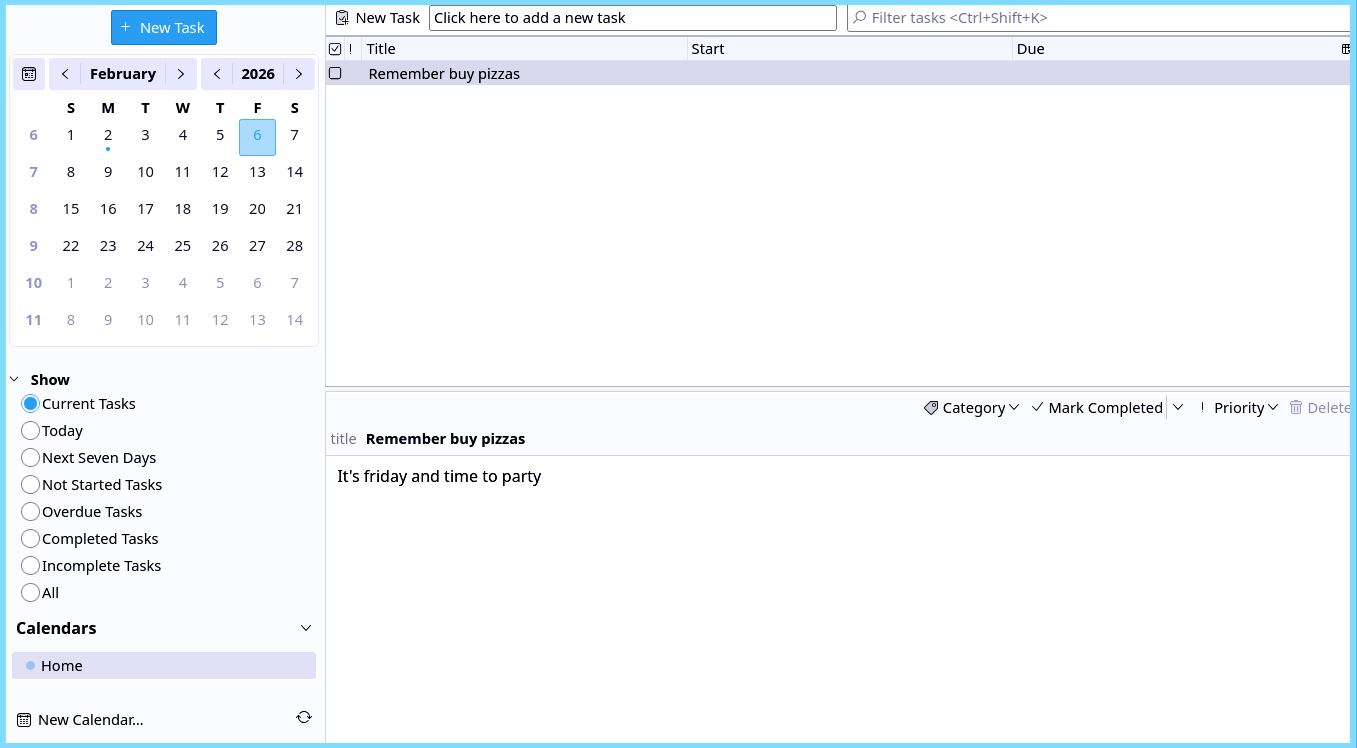
→ Integrated with Lightning — same interface as Calendar.
→ Create tasks, set due dates, priorities, categories, and mark as completed.
💡 Not as rich as Todoist or Obsidian, but fully offline, local-first, and privacy-respecting.
⚠️ Note: Tasks don’t auto-sync with email — unless you use add-ons like TaskSync.
🔹 Built-in Chat (Matrix & XMPP)
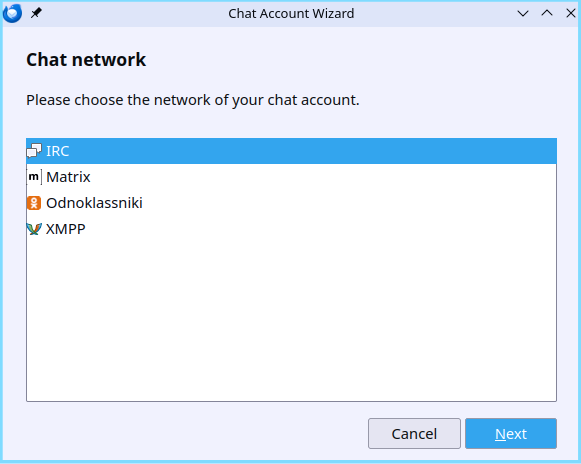
→ Hidden gem! Thunderbird has a full chat client (since v78+, improved in v102+).
→ Supports:
Matrix (via Element-compatible servers — e.g., matrix.org, privacy-oriented hosts)
XMPP/Jabber (e.g., jabber.org, Conversations.im servers)
→ Works side-by-side with email — tabs for Mail / Chat / Calendar.
→ Features: encrypted 1:1/group chats, file sharing, read receipts, emoji picker.
💡 This makes Thunderbird a true unified communications hub
❗ Limitation: No Telegram, Discord, or Signal (by design — those aren’t open protocols).
🔹 Tabbed Interface & Powerful Search
→ Tabs for messages, folders, composer, chat, calendar.
→ Global search indexes all accounts (even offline). Filters by sender, date, tag, or keyword.
💡 Feels like a modern browser — but your data stays local.
🔹 Add-ons & Customization
→ Lightweight extensions:
QuickFolders (folder shortcuts)
Send Later (schedule emails)
Dark Reader (system-aware dark mode)
→ No bloat. No telemetry. No forced updates.
The Pros and Cons
Pros (The Good)
✅ Set up Gmail/Outlook and other emails in seconds
✅ Privacy-focused (blocks tracking pixels)
✅ Thousands of themes and add-ons
✅ Cross-platform, free & open source
✅ All-in-one. Email, Calendar, Tasks, Chat
Cons (The Bad)
❌ Can feel a bit “heavy” if you only have 1 email
❌ So many settings it can be overwhelming at first
❌ Mobile app is still in early stages
My Favorite Tip: The App Menu
On Linux, Thunderbird integrates perfectly. I get a little “unread” badge on my taskbar, so I know when I have mail without having to look at the app.
📦 How to Install Thunderbird
Check your Application Menu first—you might already have it!
The beauty of Linux is that you rarely have to go hunting on websites for installers. Here are the two easiest ways to get Thunderbird:
The Software Center: Open your distro’s built-in “App Store” (it might be called Software, Discover, or AppCenter). Search for Thunderbird and hit install. It’s the safest and easiest way.
Flatpak (The Universal Way): If you want the most up-to-date version regardless of which Linux version you use, head over to Flathub.org. It works on almost every Linux system and ensures you have the latest features.
Final Verdict
If you are moving from Windows and want an app that feels familiar but offers more power than a web browser, Thunderbird is the first app you should install. It makes Linux feel like home.
💬 Your turn: Do you still use Thunderbird? Or did you switch to something else? What’s your #1 email pet peeve? Reply below — I read every comment
Hey everyone! I hope this guide helps your move to Linux. I'm curious—was your email setup easy, or did you run into any 'Windows habits' that were hard to break? I'll be hanging out here in the comments to answer any questions!